Overlays in game
Iris user guide
Choose which overlays to show from the Interface menu. Click a number below for a closer look.
- 1. Raid Damage
- 2. Raid Boss Damage
- 3. Raid Healing
- 4. Raid Damage Taken
- 5. Raid Threat
- 6. Boss HP
- 7. Raid Timer
- 8. Timers
- 9. On-screen warning
- 10. Live Effects
- 11. Raid HoTs
- 12. Raid Utility
- 13. Enemy Debuffs
- 14. Raid Notes
- 15. Boss Mechanics
- 16. Progression Assistance
- 17. Special achievements
- 18. Raid Challenges
- 19. Personal Stats
Damage, healing and health
- Raid Damage
Each player’s damage, with the total in the middle and DPS on the right.
- Raid Boss Damage
Each player’s damage and DPS against the encounter’s boss targets.
The meter covers the whole fight. For a particular enemy or phase, use the Raid tab.
- Raid Healing
Each player’s effective healing and EHPS. Overhealing is excluded. You can also enable estimated healing credit for supported shields.
- Raid Damage Taken
How much damage each player took, shown as a total and DTPS.
- Raid Threat
Threat generated during the fight, including threat reductions. These totals don’t tell you who currently has the boss.
- Boss HP
Current health, maximum health and percentage remaining for the encounter’s tracked enemies.
Enable it through Interface → Raid Boss.
Timers and warnings
- Raid Timer
Tracks the time remaining for the raid.
Open Timers & Callouts → Raid time limit. Choose New run, then Start on the overlay for a manual start. Supported encounters can start the clock automatically.
- Timers
Countdowns for boss mechanics and abilities. Choose your timers under Timers & Callouts → Boss & ability timers.
- On-screen warning
Timer warnings appear as large text. You can move them separately from the timer bars.
For spoken callouts, open Timers & Callouts → Audio callouts.
Effects and raid cooldowns
- Live Effects
Buffs and debuffs, who applied them and who has them. “3s ago” is the time since application; ×2 means two stacks or charges.
Choose which effects and players to track in Interface → Live Effects options.
- Raid HoTs
Your HoTs and shields on each raid member, including stacks.
Arrange players and columns in Interface → Raid HoTs options.
- Raid Utility
Cooldowns for battle rez, Rebounder, Predation and raid buffs. Iris assumes an ability is ready until it records a use.
Choose which abilities to show in Interface → Raid utility options.
- Enemy Debuffs
Debuffs on each enemy. Choose your own effects or the whole raid’s in Interface → Enemy debuff options.
Notes and mechanics
- Raid Notes
Keep notes on screen, such as an interrupt order or positioning reminders. Edit them in Interface → Boss notes.
- Boss Mechanics
Shows information for supported boss mechanics during a fight.
- Progression Assistance
Shows mechanic failures and the players involved during supported encounters.
Findings stay for the whole pull. Open Deaths → Fight Feedback for the full breakdown.
- Special achievements
Tracks progress towards special achievements during supported encounters, including failed conditions and when they occurred.
Raid Challenges
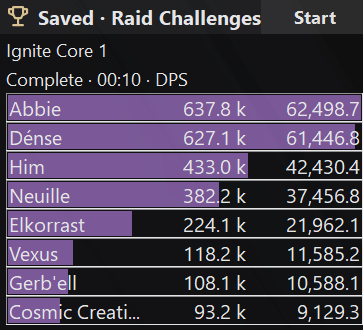
- Raid Challenges
Damage or direct healing during a mechanic or phase. Healing excludes overhealing and shields.
Choose the challenge and metric in Interface → Raid Challenge options. Automatic follows the latest challenge; repeated challenges can also have a combined total.
Complete means the challenge window has ended. Start in the header starts the parser.
Personal Stats
- Personal Stats
Your damage, effective healing, damage taken, healing received and deaths. The tabs switch between personal stats and raid meters.
Show this window through Interface → Personal Stats (tabs). Separate Personal Stats opens another personal window without tabs.
Moving and resizing
Click Displays in the main parser window, then Move and resize. Drag a window to move it and its edges to resize it. Choose Save and lock when finished. You can also uncheck Interface → Lock Overlays.
Enable Interface → Preview on Desktop to see overlays outside the game. The 8 players and 16 players Preview buttons show sample data while you arrange them; Stop returns to the selected data source.
Data source chooses live parsing, the selected saved fight, or Automatic.
Opacity
Open Displays and adjust the Opacity slider. Lower values make the backgrounds and bars more transparent. Text, icons and title bars stay opaque.
The default is 45%. Click Save after changing it.
Reading the numbers
DPS is damage per second; EHPS is effective healing per second. DTPS is damage taken per second; HTPS is healing received per second, including overhealing. Eff is the percentage of your healing that wasn’t overheal.
Saved means the results come from a loaded log. k means thousands and m means millions. A ~ marks an estimate; ? or Unknown means Iris can’t confirm the current state. ! marks partial results, and * beside threat marks missing data. A double dash means a value is unavailable.